To import data:
Merchant Manager's Data Services allows you to import and export products, categories, product attributes, orders, and customers.
To import data:
|
1 |
On the menu, click Tools and then Data Services.
|
|
2 |
Select the type of data you wish to import by selecting either Products, Categories, Product Attributes, Customers or Orders in the drop-down menu. |
|
3 |
Locate your database file by clicking Browse. |
|
4 |
Select either Comma, Semi-colon, or Tab field separator (depending on how you had them separated in your database). |
|
5 |
If the first row in your database contains data (and is not a column name), then check the First row contain data box. |
|
6 |
Select the number of rows to preview. |
|
7 |
Click Next. |
|
8 |
If you are satisfied with the preview, then click Next. |
|
8 |
Click Complete Import. |
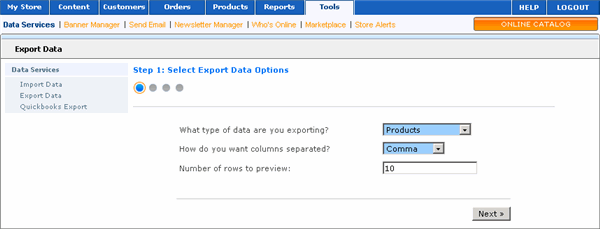
To export customer data:
|
1 |
On the menu, click Tools and then Data Services.
|
|
2 |
Select the type of data you wish to export by selecting either Products, Categories, Product Attributes, Customers or Orders in the drop-down menu. |
|
3 |
Select the separation mark: Comma, semi-colon, or tab. |
|
4 |
Select the number of rows to preview. |
|
5 |
Click Next. |
|
6 |
If you are satisfied with the preview, then click Next. |
|
7 |
Click Complete Export. |
|
8 |
You will then be prompted to either Open or Save the exported file. |
|
9 |
Click Save. |