To create a new E-mail account
Your default E-mail account is yourdomain@yourdomain.com. For example, the default E-mail account for testcvdomain.com is testcvdomain@testcvdomain.com. Depending on your plan, you may create additional E-mail accounts at no cost.
To create a new E-mail account
Manage E-mail accounts
To change the action of an E-mail
account
To change the quota of an E-mail account
To change the password of an E-mail
account
 To
create a new E-mail account:
To
create a new E-mail account:
|
1 |
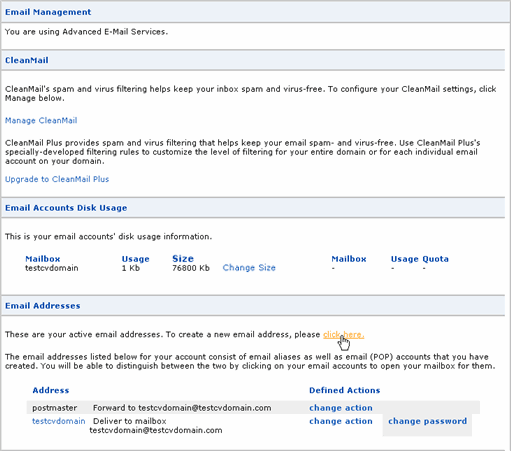
Click Email in the main navigation menu of SiteControl. |
|
2 |
Under the Email Addresses section, click click here.
|
|
3 |
Enter the name of the new E-mail address and select New Account.
|
|
4 |
Click Add Action. |
|
5 |
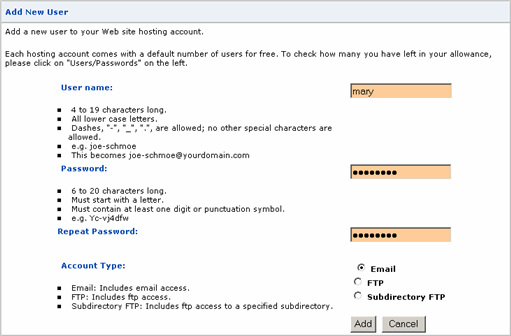
Now set its password and verify that the Account Type is set to Email.
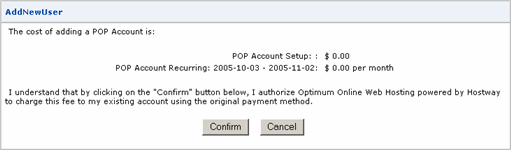
Click Add and then click Confirm.
|
|
6 |
Assuming Propagation has already been completed, you may begin to use new E-mail accounts immediately. |
To
change the action of an E-mail account:
|
1 |
Click Email in the main navigation menu of SiteControl. |
|
2 |
Under the Email Addresses section, click change action next to the appropriate address. |
|
3 |
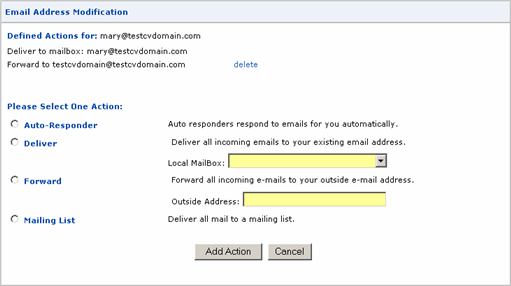
Select the appropriate action (Auto-responder, Deliver, Forward, Mailing List). For example, if we wish to automatically redirect all E-mail messages sent to mary@testcvdomain.com to the default address (or any other internal address), then click Deliver and use the drop-down menu to select the default address. Or if we wish to redirect those messages to an address outside of testcvdomain.com (for example, a Yahoo address), then select Forward.
|
|
4 |
Click Add Action. Upon doing so, the new action is reflected under the Defined Actions section.
If you later decide to revert to the original action, then click delete next to the new action. |
To
change the quota of an E-mail account:
|
1 |
Click Email in the main navigation menu of SiteControl. |
|
2 |
Under the Email Accounts Disk Usage section, click change quota next to the appropriate E-mail user. |
|
3 |
Click Add Additional MailBox Disk Space. |
To
change the password of an E-mail account:
|
1 |
Click Email in the main navigation menu of SiteControl. |
|
2 |
Under the Email Addresses section, click password next to the appropriate E-mail account.. |
|
3 |
Enter the new password and repeat. Click Change. |
|
4 |
Alternatively, you can change user passwords by clicking Users/Passwords in the main navigation menu. |